
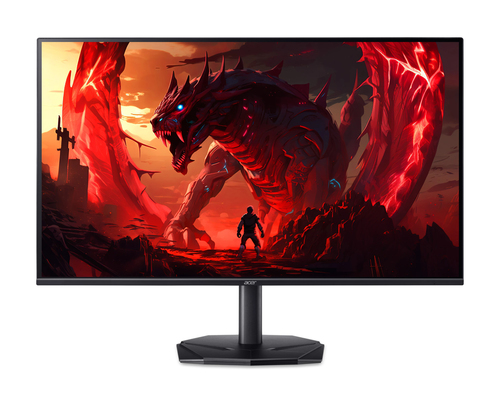
Acer
Nitro KG270 W3 Widescreen Gaming LCD Monitor
- Display diagonal
- 68.6 cm (27")
- Display resolution
- 1920 x 1080 pixels
- Panel type
- TFT
- Maximum refresh rate
- 240 Hz
Acer KG0 Nitro KG270 W3 Widescreen Gaming LCD Monitor
Model code: UM.HX0EE.335
Compare monitors with independent expert reviews, COR Scores and exact-model specifications. Find the best fit for your needs, explore the buying advice below and check available UK retailer offers.
Choosing the best monitors starts with how you will use them. Consider office and writing, photo and design, games and fast motion, then match the features and practical requirements to your shortlist.
Our UK monitor reviews comparison brings together published critics’ assessments and recorded product specifications. A COR Score converts eligible ratings to five points and gives each publisher equal weight. Read the original reviews for the reasoning, tested configuration and review date; an average becomes available after three distinct critics.
Use the available category filters to explore recorded features. Open each product to check its full manufacturer code, configuration and current review coverage. Compare retailer offers for that exact version, including condition, accessories and delivery.
Below the results, explore the buying guides, work through how to choose, or use the glossary to make sense of unfamiliar specifications.
6706 product listingsShowing 373–384
Acer
Acer KG0 Nitro KG270 W3 Widescreen Gaming LCD Monitor
Model code: UM.HX0EE.335
Acer
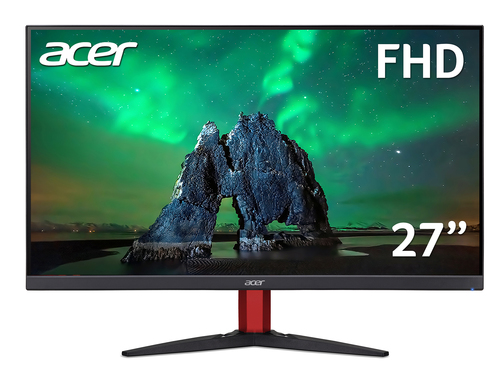
Acer Nitro KG272bmiix (1920x1080, 75Hz, 27" ZeroFrame FreeSync 1ms (VRB) VGA 2xHDMI)
Model code: UM.HX2EE.019
Acer
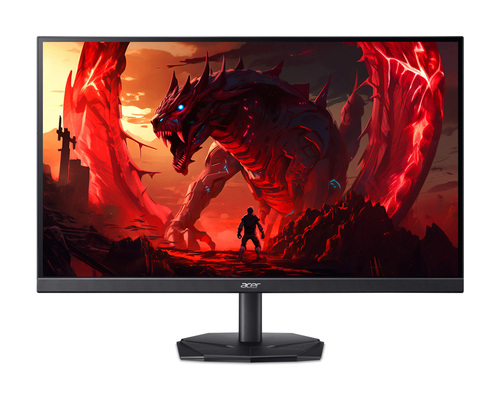
Acer Nitro KG272U Z2 Widescreen Gaming LCD Monitor
Model code: UM.HX2EE.207
Acer
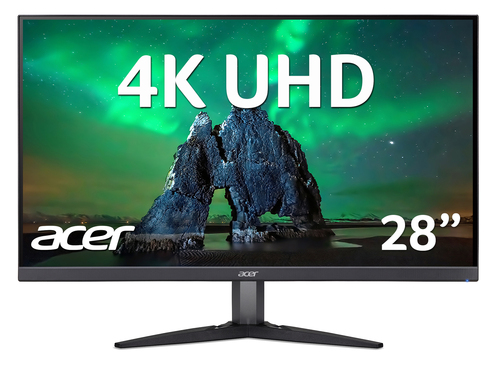
Acer Nitro KG282Kbmiipx ((28") 3840x2160, 60Hz, 4ms, IPS, ZeroFrame, FreeSync, 2xHDMI + 1xDP, HDR10)
Model code: UM.PX2EE.002
Acer
Shown option: 68.6 cm (27") · Black. Scores shown apply to this option.
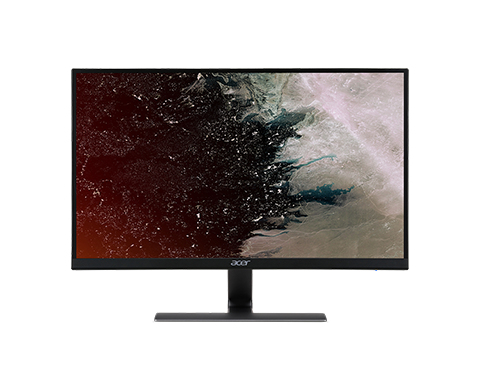
Acer Nitro RG0 computer monitor 68.6 cm (27") 1920 x 1080 pixels Full HD LED Black
Model code: UM.HR0EE.005
Specifications, review scores and prices belong to each exact model.
Acer
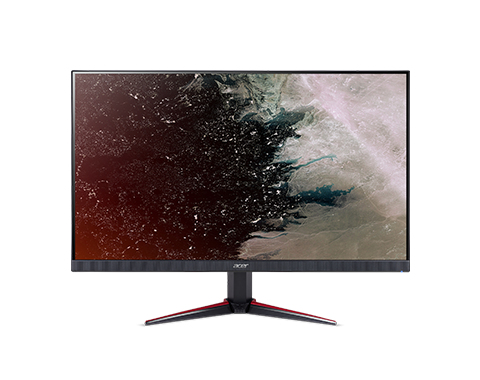
Acer Nitro VG220Q computer monitor 54.6 cm (21.5") 1920 x 1080 pixels Full HD LED Black
Model code: UM.WV0EE.006
Acer
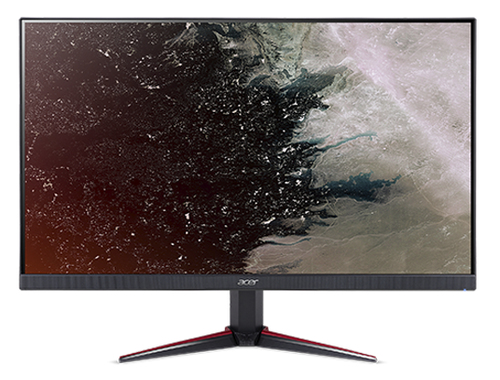
Acer Nitro VG270 computer monitor 68.6 cm (27") 1920 x 1080 pixels Full HD LED Black
Model code: UM.HV0EE.001
Acer
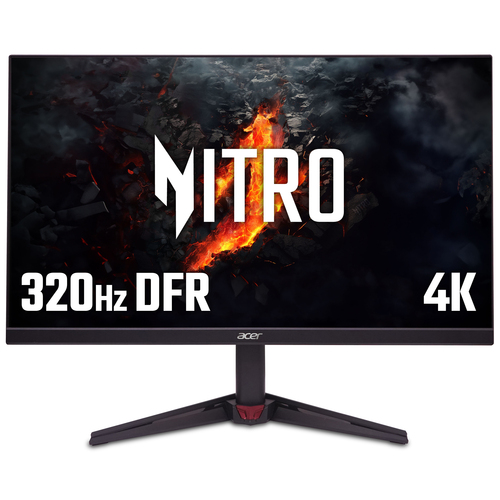
Acer NITRO VG0 Nitro VG270KV4bmiipx - 27'' 4K Ultra HD (3840x2160), 160HZ, 1ms, IPS, Black
Model code: UM.HV0EE.405
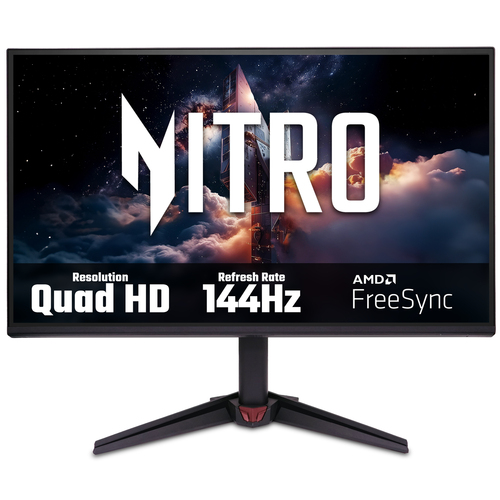
Acer
Acer NITRO VG0 Nitro VG270U P6 Gaming Monitor - 27" Quad HD (2560x1440), IPS, 144Hz, 1ms, FreeSync, HDR10, Black
Model code: UM.HV0EE.612
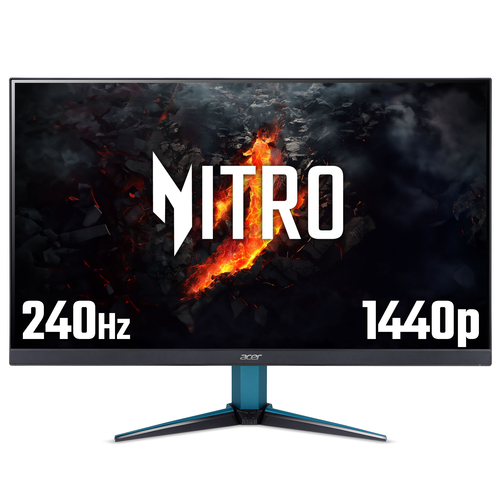
Acer
Acer NITRO VG2 Nitro VG272UW2 - 27" Quad HD (2560x1440), 240Hz, 0.5ms, ZeroFrame, HDR400, AMD FreeSync Premium Gaming Monitor
Model code: UM.HV2EE.202
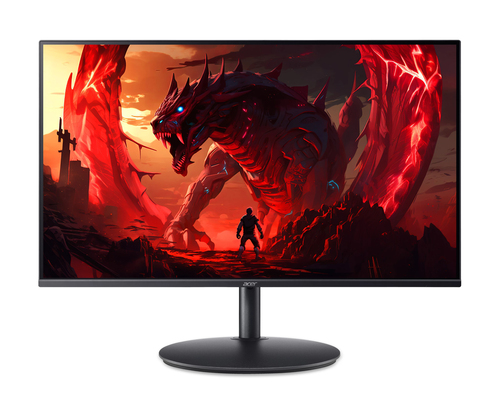
Acer
Acer Nitro XF0 Nitro XF270 W3 Widescreen Gaming LCD Monitor
Model code: UM.HX0EE.331
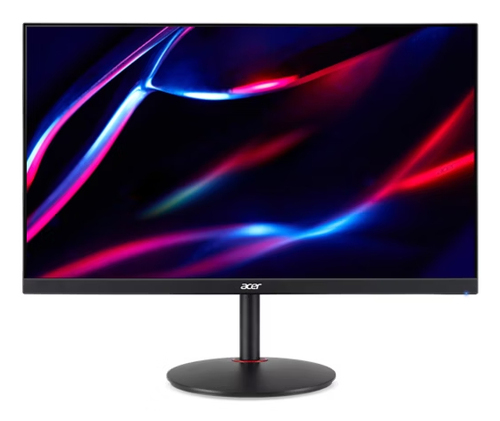
Acer
Acer Nitro XV271UM3bmiiprx computer monitor 68.6 cm (27") 2560 x 1440 pixels Wide Quad HD Black
Model code: UM.HX1EE.301
Select a product to check its exact model, reviewed version and available retailer offers. Matching model options are grouped together where supported; the displayed score belongs to the shown option. Individual critic reviews remain visible while a product builds towards three critics for a COR Score.
Your reading library
Understand the features and specifications you see in monitor reviews. Read the complete guide or explore a focused topic.
Read the complete buying guide →Back to the results ↑Resolution counts pixels; screen size determines how densely they are packed. The same resolution can look spacious on one diagonal and coarse on another, so compare the combination rather than either number alone.
Explore the guide →Choose refresh rate from actual frame rate, motion needs, connection limits and image-quality priorities.
Explore the guide →Choose panel behaviour around text, contrast, motion, viewing position and static desktop use.
Explore the guide →Check charging power, video mode, hub bandwidth, network and downstream ports as one system.
Explore the guide →Your six-step checklist
Find the best fit for your priorities, your setup and your budget.
Turn expert monitor reviews into a shortlist with these six practical checks.
Measure desk depth, viewing distance and arm clearance.
Your decision Measured desk arrangement.
Check computer output, monitor input, cable and dock as one chain.
Your decision Checked display chain.
Choose a stand or arm with the adjustment you actually need.
Your decision Chosen adjustable support.
Use independent tests for brightness, uniformity, text and motion.
Your decision Read display evidence.
Confirm USB-C charging and display limits if using one-cable docking.
Your decision Confirmed docking limits.
Read dead-pixel, warranty and firmware-support terms.
Your decision Checked service terms.
Ready to build your shortlist? Use these checks to narrow the results, then read the evidence for each exact model.
Make it work for you
Turn your everyday needs into a practical setup. Record these details before comparing your final shortlist.
| Requirement | What to record or check |
|---|---|
| Desk space | Desk depth, viewing distance, arm clearance and stand footprint |
| Display chain | Computer output, monitor input, cable, dock and supported modes |
| Physical support | Stand or arm adjustment, mounting pattern and movement |
| Ownership terms | USB-C limits, pixel policy, warranty, firmware and support |
Use the exact model’s manual and manufacturer specifications to confirm measurements, connections and supported features.
Keep your priorities together. A short set of notes makes it easier to compare complete offers and discuss your requirements with a retailer or installer.
For games, match refresh rate and adaptive-sync support to the graphics hardware and cable path. Review input lag, response at different refresh rates and overdrive behaviour rather than relying on a maximum headline.
Practical check Check warranty terms for pixels, panel defects and power supply, along with firmware update method. A monitor is usually kept for years, so ports and ergonomic flexibility can outlast a small specification advantage.
Explore this in the buying guide →Screen size and resolution set pixel density, which affects text size and sharpness at a fixed desk distance. Try the intended operating-system scaling: too much scaling reduces usable workspace, while too little can make text tiring to read.
Practical check Review subpixel layout and text clarity where office work is the priority. A monitor praised for games can still render small text less cleanly with a particular operating system.
Explore this in the buying guide →A one-cable monitor may carry display data, USB peripherals and charging, but its power delivery and data bandwidth are specified limits. Confirm computer, monitor, dock mode and cable all support the desired resolution and peripherals together.
Practical check A high-resolution display plus webcam, Ethernet and storage can exceed a hub configuration or reduce refresh rate. Read the monitor manual for port-sharing behaviour before replacing a separate dock.
Explore this in the buying guide →Compare with a purpose
Choose your main priority, then compare the evidence that matters most for your setup.
| Your main use | What to look for | What to weigh up |
|---|---|---|
| Office and writing | Text scaling, height adjustment, connections and glare | Higher resolution may require scaling on a smaller screen. |
| Photo and design | Colour workflow, uniformity, calibration options and viewing environment | A wide gamut can be inaccurate without suitable colour management. |
| Games and fast motion | Refresh support, response behaviour and adaptive-sync compatibility | A high refresh rate needs an appropriate computer and connection. |
Include the product, delivery, required accessories and any setup or installation. Check relevant consumables, subscriptions and replacement parts over the period you expect to own it.
Use your planning notes to identify essential functions and connections. Confirm them for the exact model and configuration, then weigh optional features against the difference in price.
Read the original critics’ findings for your priorities. Check the date and tested version, then compare the evidence alongside the COR Score and number of distinct critics.
Check the manufacturer code, generation, configuration, condition and included items. Confirm stock, delivered price, returns and warranty terms with the retailer before ordering.
Open the specifications glossary · Compare expert reviews · Check the model and offer
Independent reviews, made comparable
One consistent scale makes different publishers’ ratings easier to compare. The original review explains why a critic reached that verdict.
Read our scoring methodology →Scale conversion · example
An illustration of conversion, not a rating for a listed product.
Identify the exact product and the version reviewed. Check model codes, configuration and the included package.
Convert eligible ratings to five points, count each publisher once and give every critic equal weight.
Show the average to two decimal places after three distinct critics. Otherwise show tbd while keeping individual reviews visible.
Read the score alongside the critic count, review dates, tested version and strengths that matter to you. Linked reviews of related hardware remain separate from the selected product’s score.
Explore the catalogue
Compare the recorded models, explore different configurations and follow the available expert reviews. Use each product page for its latest evidence and retailer links.
Return to the results ↑Explore your options
Follow a manufacturer or a selection based on recorded product features.
Your questions, answered
Ten answers to help you make an informed choice.
It can make movement feel smoother, but benefits depend on the computer, connection and the activity.
Not necessarily. Check the laptop port supports the required display mode and charging level.
It depends on size, desk distance and use. Try it for text and multi-window work, not only video.
Start with your main use, practical setup and total budget. The comparison table above identifies useful features for different priorities. Use the category filters, then check exact-model specifications and the original reviews for your shortlist.
It summarises eligible independent critic ratings on a five-point scale, with one equally weighted rating per publisher. The displayed average has two decimal places. Open the original reviews to see how the findings relate to your priorities.
A public COR Score becomes available after three distinct critics. Until then, tbd indicates that review coverage is still building; available individual reviews remain visible. It is different from a zero rating.
Check the version actually reviewed. Confirmed equivalent colour, storage or accessory variants can share model-level reviews with a tested-version label. Related hardware, different generations and other distinct editions are shown separately and do not contribute to the selected product’s score.
Filters use the recorded specifications for each model or option. Choose a brand or feature, then apply your filters to narrow the results. Missing information is not treated as confirmed feature support. Open the product page to check the full specification.
Match the complete manufacturer code, configuration, condition and included items. Add delivery and necessary accessories to compare the total cost, and confirm stock, warranty and returns details with the retailer.
Check the review date, tested version and current manufacturer support. Compare the features you need, replacement parts or consumables where relevant, and the complete offer. A useful older review can still explain a model well, while availability and services may have changed.
Related categories
Compare complementary products and other ways to meet your needs.
Specifications, explained
Understand the terms, then use the buying checks to compare exact models.
12 terms
The number of picture elements used to form a display, image or video frame, usually expressed as horizontal and vertical pixel counts.
Buying check Check the resolution supported in the mode you will use; compare real detail and clarity in independent tests.
The concentration of screen pixels, expressed as pixels per inch.
Buying check Consider text size and operating-system scaling at your usual viewing distance.
The range of colours a device can reproduce relative to a reference colour space.
Buying check Check the colour space, calibration and accuracy required by your work.
High dynamic range formats carry information intended to represent a wider range of brightness and colour.
Buying check Format support alone does not establish the display’s HDR performance.
An LCD panel family often chosen for viewing-angle performance, with results varying by model.
Buying check Compare contrast, response and uniformity tests for the exact monitor.
An LCD panel family often associated with stronger native contrast than some other LCD types.
Buying check Read motion and off-centre viewing tests rather than relying on the panel label.
How often a display can refresh its image each second.
Buying check Check supported resolution and refresh rate over the input you will use.
A feature that lets a compatible display vary its refresh timing with the source.
Buying check Check the supported range and the source, port and operating mode.
A reversible connector shape used for several different data, display and power capabilities.
Buying check Read the port specification; the connector shape alone does not confirm supported functions.
A charging protocol that lets compatible equipment negotiate supported power settings.
Buying check Check source, device and cable compatibility at the required power level.
An accessory that combines connections such as displays, USB devices and power.
Buying check Match the dock to the computer, displays and charging requirements.
A standardised arrangement of mounting points used by compatible displays and brackets.
Buying check Match the pattern, weight limits, fixings and installation instructions together.
No matching term. Try an abbreviation or clear the search to browse all topics.
Technical sources and further reading · Check the exact model’s manufacturer documentation for supported features.